
Introduction
If you’ve ever pulled up Google Analytics 4 and thought “these numbers don’t look right,” you’re not alone. It’s one of the most common problems marketing teams run into — and in almost every case, the root cause isn’t a mysterious Google bug. It’s a configuration issue sitting somewhere between GA4, Google Tag Manager (GTM), and Search Console.
This guide walks through a real-world GA4 and GTM audit, step by step, the way a consultant would actually run it. You’ll learn how to verify that your tracking is working, where duplicate or missing data usually hides, how to clean up a messy GTM container, and how to build a reporting setup you can actually trust for SEO, campaign measurement, and lead-generation decisions. Whether you’re a marketer, business owner, or in-house SEO trying to make sense of your analytics for the first time, this is written to be beginner-friendly — but detailed enough that an experienced analyst will get value from it too.
Why Accurate Tracking Matters More Than You Think
Every marketing decision — which keywords to target, which ads to scale, which landing page wins an A/B test, which lead source actually converts — depends on the data underneath it. If that data is duplicated, missing, or inconsistently labeled, every decision built on top of it inherits the same error.
This isn’t a hypothetical risk. In our audits, the most common outcome isn’t “tracking is broken.” It’s “tracking is technically working, but quietly wrong” — events firing twice, conversions being over- or under-counted, or organic search data sitting disconnected from on-site behaviour. These issues rarely throw an error message. They just slowly erode trust in the numbers until someone finally asks, “wait, does this look right to you?”
Step 1: Confirm the Basics Are Working
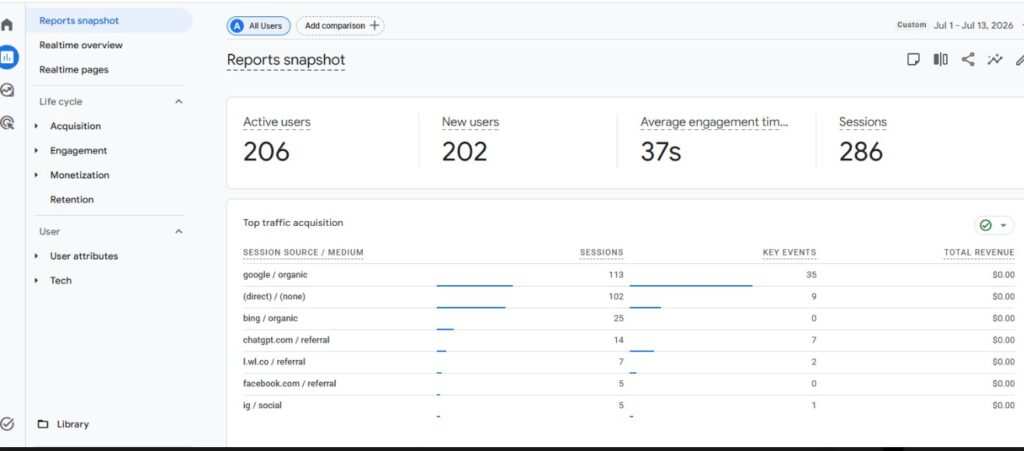
Before diagnosing anything specific, start with a baseline health check. You’re answering one question: is data flowing at all?
- Open your GA4 property and confirm sessions, users, and events are populating in standard reports (not just Realtime).
- Confirm the Google Tag (the base gtag.js or GTM-deployed tag) is present on every page — check your site’s source code or use a browser extension like Tag Assistant.
- Check that your property isn’t sitting in “No data received in 48 hours” status, which appears at the top of the GA4 Admin panel if the connection has fully dropped.
If data is flowing, you’re dealing with a configuration problem, not a broken implementation. That distinction matters — it tells you whether you need to redeploy tracking from scratch or simply clean up what’s already there. Most audits fall into the second category.
Step 2: Verify Realtime Reports
Reports → Realtime is the single fastest diagnostic tool in GA4. Unlike standard reports, which can take 24–48 hours to process fully, Realtime shows activity within seconds.
How to use it properly:
- Open your site in an incognito/private browser window.
- Open GA4’s Realtime report in a separate tab.
- Click around your site — visit a few pages, submit a test form, click an outbound link.
- Watch for your test session to appear, along with the specific events you triggered.
If your session doesn’t show up, the base tag isn’t firing — check for consent management platform (CMP) blocking, ad blockers, or a GTM container that failed to publish. If your session does show up but specific events don’t, the problem is narrower: a specific tag or trigger inside GTM is misconfigured.
Practical tip: Make Realtime verification part of your standard workflow after every GTM publish — not just during a full audit. It turns “did that change actually work?” from a multi-day guessing game into a 30-second check.
Step 3: Link Google Search Console to GA4
This is one of the most commonly skipped steps — and one of the most valuable to fix. Search Console and GA4 answer two different halves of the same question:
- Search Console shows what happens before the click: queries, impressions, average position, and click-through rate (CTR).
- GA4 shows what happens after the click: engagement, conversions, and on-site behaviour.
Without linking them, you’re stuck manually cross-referencing two separate dashboards to understand which search queries actually drive engaged, converting traffic versus which ones generate clicks that bounce immediately.
How to link them:
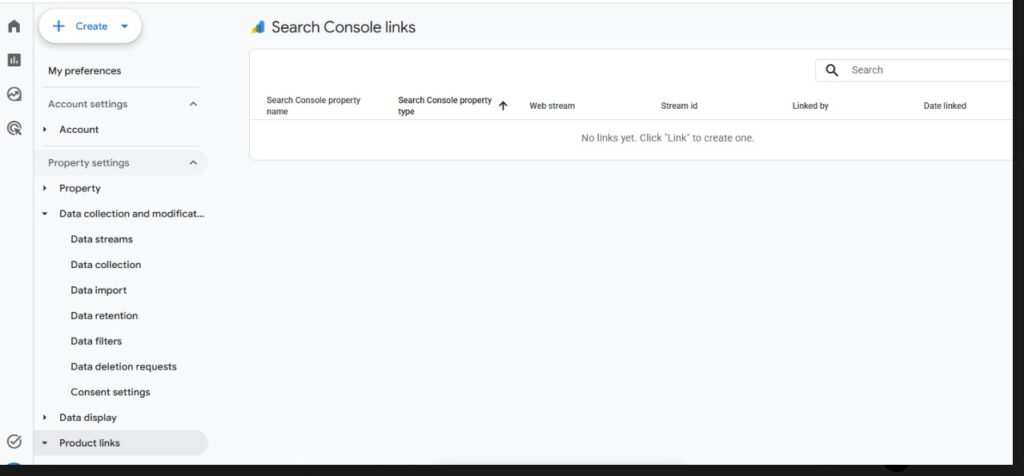
- In GA4, go to Admin → Product Links → Search Console Links.
- Click Link, choose your verified Search Console property, and confirm the data stream.
- Allow 24–48 hours for the new Search Console report collection to populate under Reports → Acquisition → Search Console (or a similarly named section depending on your GA4 interface version).
For SEO-driven businesses, this single link often surfaces more actionable insight than any other configuration change in this whole guide.
Step 4: Review Enhanced Measurement (Without Creating Duplicates)
GA4’s Enhanced Measurement feature automatically tracks scroll depth, outbound clicks, site search, video engagement, and file downloads — no custom tagging required. It’s tempting to switch everything on. Don’t, until you’ve checked one thing first.
Rule: Only enable an Enhanced Measurement feature after confirming it isn’t already covered by a custom GTM tag.
Here’s the concrete risk: if GTM already has a custom trigger firing a file_download event on PDF clicks, and Enhanced Measurement’s automatic download tracking is also switched on, every download now fires two events instead of one. Your reports won’t show an obvious error — downloads will simply be silently overcounted by roughly double, which is more dangerous than a broken tag because nothing looks wrong.
Before enabling any Enhanced Measurement feature, ask:
- Does an existing GTM tag already track this interaction?
- If so, does the event name match GA4’s built-in convention (scroll, click, file_download, video_start)? Even if you don’t think you’re duplicating, mismatched names can fragment reporting.
- Would it actually be simpler to turn off the custom GTM tag and rely on the native feature instead? Often yes — native tracking requires zero ongoing maintenance.
Step 5: Audit the Google Tag and GTM Structure
This step is where most reporting inconsistencies actually originate — and it’s the most technical part of the audit.
The Correct Structure
GA4 tracking through GTM should follow a clean separation of responsibilities:
Tag Type | Responsibility | Correct Trigger |
Base Google Tag (GA4 Configuration) | Establishes the connection to your GA4 property and sends page_view data | Initialization or All Pages |
GA4 Event Tags | Track specific interactions (clicks, form submits, downloads) | Custom triggers scoped narrowly to that interaction |
The Common Mistake
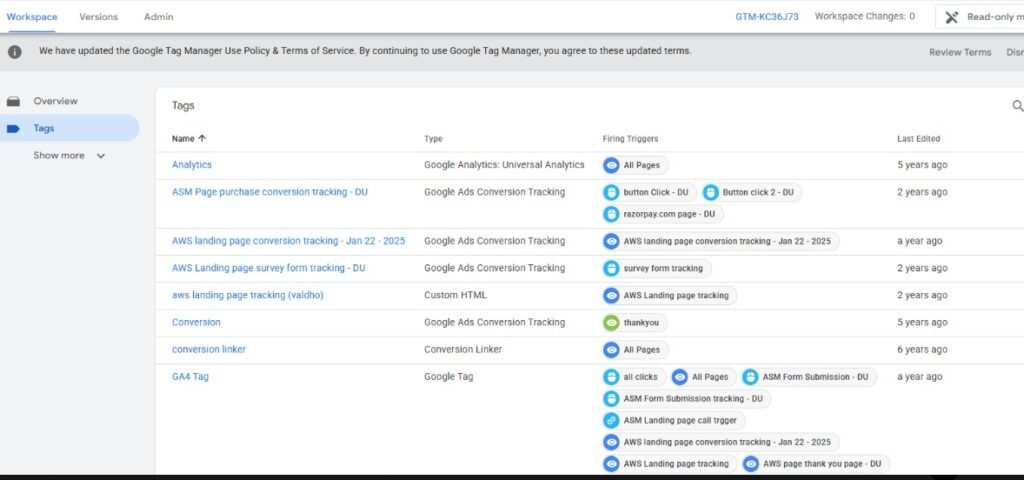
In real audits, it’s common to find the base Google Tag wired directly to numerous triggers — clicks, form submissions, thank-you page views, and various custom events — instead of being scoped to Initialization/All Pages only.
This causes three compounding problems:
- Duplicate events, because an interaction can fire through both the base tag’s attached trigger and a separate dedicated event tag.
- Debugging becomes exponentially harder, since a single tag with a dozen triggers means troubleshooting has to rule out a dozen firing paths instead of one.
- Higher maintenance risk, since editing the base tag risks breaking every interaction routed through it, instead of one isolated tag.
How to Audit It
- Open your GTM container and go to Tags.
- Identify your base GA4 Configuration tag.
- Click into it and review the Triggering section.
- If you see anything beyond Initialization/All Pages, that’s your red flag — those interaction triggers need to be moved to dedicated GA4 Event tags.
Step 6: Review Variables, Triggers, and Events
Once tags are separated correctly, check the supporting layer:
- Variables — Are you reusing built-in variables (Click URL, Form ID, Page Path) where possible, rather than creating redundant custom ones? Duplicate variables performing the same function are a common source of confusion during future edits.
- Triggers — Are trigger conditions specific enough? A trigger set to “All Clicks” instead of a scoped “Click on .pdf links” will fire far more often than intended, generating noisy or inaccurate event data.
- Events — Are event names consistent across the container? Mixing form_submit, formSubmission, and Form Submission for the same interaction splits your data across three different labels in reporting.
Step 7: Check Key Events (Formerly “Conversions”)
GA4 renamed “Conversions” to Key Events — but the underlying concept is the same: these are the events that matter most for measuring business results (leads, purchases, sign-ups).
How to review them:
- Go to Admin → Events and confirm which events are marked as Key Events.
- Cross-check each one against DebugView (next section) to confirm it’s firing at the correct moment — not too early, not too often.
- Remove Key Event status from anything that no longer reflects a genuine business outcome (e.g., a test event left over from a previous campaign).
A quarterly Key Event review catches silent drift before it distorts your conversion data — tags change, pages get redesigned, and a Key Event that fired reliably six months ago can silently break or start over-firing without anyone noticing.
Step 8: Use DebugView to Test Events Before They Go Live
DebugView (under GA4 Reports → Admin → DebugView) shows events in real time, along with every parameter attached to them — before they ever reach your production reports.
How to use it:
- Install the Google Analytics Debugger browser extension, or use GTM Preview mode (which automatically enables DebugView).
- Perform the interaction you want to test — click a button, submit a form, scroll the page.
- Watch the event appear in DebugView, and expand it to check the parameters being sent (event name, page location, form ID, etc.).
This is the single most reliable way to catch a misconfigured tag before it pollutes weeks of production data.
Step 9: Check Tag Coverage and Conversion Tracking
“Tag Coverage” isn’t a single button in GTM — it’s a discipline of confirming every page type and every conversion path is actually instrumented. Walk through your site’s key templates:
- Homepage
- Category/service pages
- Blog/article pages
- Contact or lead-gen forms
- Thank-you / confirmation pages
- Checkout or booking flow (if applicable)
For each, confirm in GTM Preview mode that the base tag fires, and that any relevant event tags fire at the correct step. A common gap: thank-you pages that aren’t tracked at all, meaning form-based Key Events never actually register a conversion — even though the form submission itself worked perfectly.
Common Mistakes We See in GA4/GTM Audits
- Base tag overloaded with interaction triggers, instead of being scoped to Initialization/All Pages only.
- Enhanced Measurement enabled without checking for overlap with existing GTM tags, causing duplicate events.
- Search Console never linked, leaving SEO and on-site behaviour data siloed in two separate tools.
- Inconsistent event naming across tags, fragmenting what should be a single event into multiple report lines.
- Untracked thank-you pages, causing form-based Key Events to under-report actual leads.
- No GTM version backups, making rollback painful when a publish introduces a bug.
- Key Events never reviewed, so outdated or broken events keep skewing conversion reporting long after they stop reflecting reality.
- No UTM tagging discipline, forcing GA4 to rely on its own automatic channel grouping, which is often too broad to distinguish one campaign from another.
GTM Cleanup Checklist
Use this as a working checklist during your own container audit:
- Export a full container backup (JSON) before making any changes
- Confirm the base GA4 Configuration tag is scoped to Initialization/All Pages only
- Move all interaction-based triggers off the base tag and onto dedicated Event tags
- Standardize event naming conventions across all tags
- Remove unused or duplicate variables
- Narrow overly broad triggers (e.g., replace “All Clicks” with scoped click triggers)
- Test every tag in GTM Preview mode before publishing
- Document each tag’s purpose in the GTM notes field for future maintainers
- Publish with a clear, descriptive version name (not “update”)
GA4 Optimization Checklist
- Confirm the GA4 data stream is actively receiving data
- Link Google Search Console under Admin → Product Links
- Verify Realtime reports after any tracking change
- Audit Enhanced Measurement settings against existing GTM tags
- Review and clean up Key Events quarterly
- Test all major events in DebugView before trusting them in reports
- Confirm tag coverage across every key page template, including thank-you pages
- Apply consistent UTM parameters to all campaign links
- Build a Looker Studio dashboard to surface clean, reviewed data for stakeholders
FAQs
Q: How do I know if my GA4 tracking is broken versus just misconfigured? If Realtime reports show active users and events, your tracking is fundamentally working — you’re likely dealing with a configuration issue like duplicate events or missing links, not a broken implementation.
Q: Why does GA4 show different numbers than Search Console? They measure different things — Search Console reports pre-click search performance (impressions, clicks, CTR), while GA4 reports post-click on-site behaviour. Some discrepancy is normal; linking the two tools helps you understand the relationship rather than eliminate the difference entirely.
Q: Should I enable all Enhanced Measurement features? Not automatically. Check each feature against your existing GTM tags first — enabling a feature that duplicates an existing custom tag will inflate your event counts without any obvious error.
Q: How often should I audit my GTM container? A full audit is generally worthwhile every 6–12 months, or immediately after a website redesign, CMS migration, or major campaign launch — all common triggers for tracking drift.
Q: What’s the difference between a Key Event and a regular event in GA4? Every Key Event is an event, but not every event is a Key Event. Key Events are the subset marked as representing meaningful business outcomes (leads, purchases, sign-ups) and are used in conversion-focused reporting and ad platform integrations.
Q: Can I recover from a bad GTM publish? Yes, if you’re using GTM’s built-in version history or have exported a backup — both let you roll back to a previous working version quickly.
Conclusio
The fix isn’t a full rebuild. It’s a structured, repeatable audit: confirm the basics, verify Realtime, link Search Console, review Enhanced Measurement against your GTM setup, separate your base tag from interaction tracking, and test everything in DebugView before trusting it. Combined with a regular cleanup cadence — container backups, Preview mode testing, consistent naming, and quarterly Key Event reviews — this turns a “technically working but inconsistent” analytics setup into one your marketing, SEO, and leadership teams can actually make decisions on. Set aside a couple of hours, work through the checklists above, and you’ll likely uncover the same kind of quiet, compounding issues most sites accumulate over time — before they cost you a wrong decision built on wrong data.